Webcam Placement and Lighting Checklist for Remote Work
Improve remote-work video calls with a practical webcam placement and lighting checklist before buying new equipment.
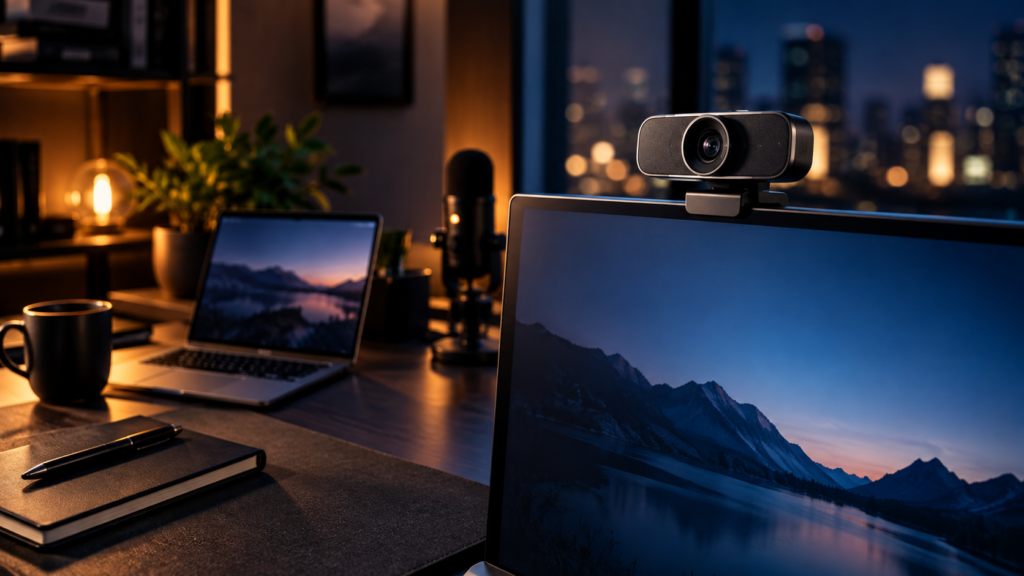
A new camera will not fix a video call if it points up from a laptop on your desk while a bright window sits behind you. Before comparing webcams, improve the things you can control for free: camera height, distance, light direction and a quick pre-call check. This practical setup guide complements our webcam buying guide and desk lamp guide. It focuses on positioning rather than ranking models.
Start With the Camera You Already Have
Open a preview in the meeting app you use most. Sit in your normal working position instead of leaning toward the camera for a test. Is your face near the center of the frame? Can you see your eyes without looking down sharply? Is there distracting ceiling or empty wall space above your head? Change the position of your laptop or webcam before changing software settings.
Raise the camera near eye level by using a stable laptop stand or monitor mount. A slight angle can work, but a camera much lower than your face can make the image feel unnatural and show more of the ceiling than your workspace. Microsoft advises positioning meeting cameras close to eye level in its hybrid meeting device guidance. For a home office, the same principle is a useful starting point; adjust until the preview looks comfortable.
Keep the camera supported. A wobbly stack of books or an unsecured clip can move during typing. Check that a monitor-mounted webcam does not block important pixels or interfere with a monitor arm's movement. If you use a laptop, an external keyboard and mouse can make it easier to raise the screen without raising your hands to an awkward typing position.
Place Light in Front of You
The fastest improvement is often to turn so a window lights your face instead of your back. A bright window behind you can make the camera expose for the background and leave your face dark. Google recommends a well-lit area with light falling on the face rather than behind it in its Meet guidance for remote events. Move the desk or change your chair angle if possible, then check the preview again.
If daylight changes throughout the day, add a small lamp near the camera. It does not need to shine directly into your eyes. A light bounced off a nearby wall or softened by a shade may look less harsh than a bare bulb. Keep the light source outside the camera frame and away from the monitor screen to reduce glare. If one side of your face looks much brighter, move the lamp or lower its intensity before buying another light.
Do not rely on a strong ceiling light alone: it may leave shadows around the eyes. You can use it as ambient light while a window or desk lamp provides the main illumination. The best layout is the one you can repeat quickly at the hour you normally take calls.
Check the Background and Framing
Your background does not need to look like a studio. A simple, tidy area behind you is easier for the camera to expose than a very bright window, a moving television or a cluttered shelf. Leave a little space between your chair and the background when your room allows it; that separation can help your face remain the clear subject.
Keep the frame wide enough that small movements do not cut off your head, but not so wide that you become tiny. If your webcam offers a field-of-view control, compare settings in a preview rather than assuming the widest angle is best. A camera positioned too far away can make a small room look larger while making facial expressions harder to see. A camera very close can exaggerate perspective and reduce the space for natural movement.
Look at the camera occasionally when speaking, then at your colleagues' video or shared material as needed. You do not need to stare into the lens for the whole meeting. Place the call window near the camera so your gaze does not constantly drift far to one side.
Set Up Two Monitors Without an Awkward Angle
If you use two monitors, put the camera near the screen where the call window usually lives. A camera on the far side of the second monitor may show you in profile while you look at notes on the main screen. You can move the meeting window closer to the lens or use a camera with a mount that can move. Test the framing while you work normally, not only while posing for the preview.
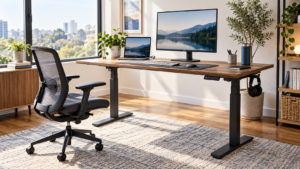
For a height-adjustable desk, check the camera angle at both seated and standing positions. The monitor and mounted camera rise together, but your body position and distance may change. Our standing desk measurement guide covers the desk and monitor space needed for a two-screen setup.
Use the Pre-Call Preview
Before an important meeting, confirm the selected camera and microphone, then check lighting and framing. Google Meet's device check provides a preview and device selection before joining. Other meeting tools offer similar controls. If the image suddenly looks poor, first check the physical lens cover, cable connection and selected device before shopping for hardware.
Some apps can automatically brighten a dark image, but that does not replace a sensible light position. Software enhancement may make an image usable in difficult conditions; it cannot remove a lamp reflection from your glasses or turn a blocked camera into a clear view. Change one variable at a time so you know what actually improved the result.
A Five-Minute Setup Checklist
- Camera mounted securely close to eye level and pointed at your normal seated position.
- Main light in front of or to the side of your face, with no bright window directly behind you.
- Face clearly visible in the preview, with a little headroom and room for natural movement.
- Meeting window near the camera, especially when using two monitors.
- Correct camera and microphone selected; privacy cover open only when you intend to be on camera.
- Cable and mount clear of monitor-arm movement, desk travel and keyboard space.
If you have tried those changes and your built-in camera still cannot produce an acceptable image, compare specifications in our webcam buying guide. If lighting is the limiting factor, read our desk lamp comparison before buying a camera you may not need.
FAQ
Should the webcam be above or below the monitor?
Near eye level is a useful starting point. On many desks that means a camera mounted at the top of the monitor or a raised laptop screen. Use the preview to fine-tune the angle for your face and working position.
Is a ring light necessary for remote work calls?
No. A window in front of you or an existing lamp can often provide useful light. Buy another light only after you test the room at your usual meeting time and identify a specific problem it would solve.
Why does my face look dark even with a good webcam?
Check for a bright window or lamp behind you. Move the light in front, change your seating angle, or reduce the bright background. Then review the camera exposure setting if the meeting app offers one.
Sources and Editorial Disclosure
The placement guidance draws on Microsoft's camera-position advice, Google's lighting guidance and Google Meet's pre-call device check. This is an editorial setup guide, not a hands-on test of a specific webcam. It contains no direct affiliate product links. Linked buying guides may contain affiliate links and explain that on their pages.
CTA
Take a screenshot of your call preview now, change only the camera height and light direction, and compare the result. Keep the setup that looks better in the app you actually use; shop for hardware only after the placement is right.
About The Author