How to Stop a Monitor Arm From Drooping
Fix monitor arms that sink, tilt or drift. Diagnose lift tension, pivot problems, desk clamps and cable routing before buying a replacement.
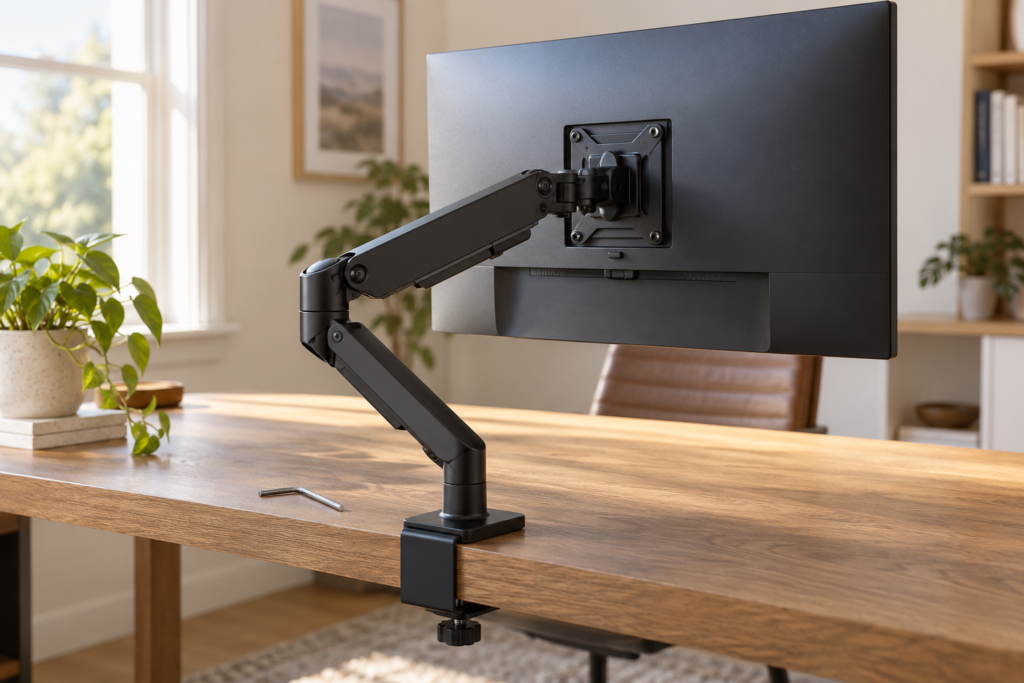
A monitor that slowly sinks during the workday turns a useful desk upgrade into a repeated interruption. Before replacing the arm, identify what actually moves: the whole screen drops in height, the display tilts forward, or the mounting base shifts on the desk. Those symptoms point to different checks.
Start with the arm's exact model number and installation manual. A lift adjustment is different from a tilt adjustment, and tightening whichever screw is easiest to reach can leave the real problem unchanged.
Quick diagnosis for a drooping monitor arm
| What you see | Where to start | What to avoid |
|---|---|---|
| The whole display sinks in height | Check the supported load and lift adjustment | Treating the tilt screw as a height control |
| The screen tips downward while the arm stays up | Check the tilt pivot and display compatibility | Increasing lift force to fix screen angle |
| The base shifts or the desk edge moves | Check the mounting surface and clamp installation | Adding more clamp force to a damaged desktop |
| The screen drifts when you reposition it | Check cable slack and the affected joint | Adjusting every joint at once |
Use this table to choose the first inspection, rather than to diagnose a failed part remotely. The useful question is not simply whether the monitor droops, but where its position changes.
Check weight and compatibility before adjusting
Find your monitor's weight without its original stand, then compare it with the requirements for your exact arm and mounting configuration. Do not choose by screen size alone. Check any manufacturer instructions for accessories attached to the display as well.
Depth can matter alongside weight. Ergotron's LX dimensional guide notes that deeper displays can reduce the mount's effective capacity. Its HX with HD Pivot is specified separately for large, deep curved displays. The practical takeaway is to verify the complete display and pivot combination, rather than assuming an advertised maximum weight settles every compatibility question. Ergotron LX dimensional guide, Ergotron HX with HD Pivot specifications.
Write down the arm model, monitor model and the movement you observed. Keep those details together if you need to contact the manufacturer. They are more useful than a description such as "my mount is loose."
When the entire arm drops
A counterbalanced arm should support its installed equipment and remain where it is positioned when correctly adjusted. The lift setting is the first adjustment to investigate when the whole display sinks and the load is compatible. Ergotron's WorkFit A guide distinguishes increasing lift strength from reducing it and calls for adjustments after the mounted equipment changes. WorkFit A adjustment instructions.
Use the manual's diagram to locate the correct adjustment point. Follow its instructions for arm position, tool size and turning direction. Make a controlled change, test the movement, and note the result before making another. Avoid transferring a turn count or torque value from a different arm model.
Humanscale's desk-mount instructions provide a useful example of why model details matter: the lift adjustment and the monitor's tilt setting are described separately, and the instructions warn against excessive tightening. Read the manual for the arm you own, even when an online demonstration looks similar. Humanscale desk-mount assembly instructions.
When the monitor tilts forward
If the arm keeps its height but the screen's viewing angle changes, investigate the pivot immediately behind the display. Ergotron's 100 Series pivot guide lists pivot tension and an excessive display load as possible causes of tilt problems. This is a different adjustment from changing the arm's height. Ergotron pivot troubleshooting guide.
Compare the joint shown in your manual with the actual hardware. Identify the tilt control before applying a tool. If the instructions or compatibility information are unclear, send the manufacturer a photo of that joint together with the arm and display model numbers.
Inspect the clamp and desktop
Watch the base separately from the moving arm. A shifting clamp or flexing desk edge needs a mounting inspection before further adjustments. Ergotron's installation guidance requires a surface capable of supporting the mounted equipment and secure clamp installation. WorkFit A mounting instructions.
Check whether the clamp sits flat on the intended mounting area. A rectangular desktop can still have a beveled rear edge, an apron or a cable tray that obstructs the clamp. Compare what is physically underneath the desk with the installation diagram, not just the desk's overall dimensions.
If the desktop is cracked, compressed or otherwise damaged at the mount, stop using that attachment point and ask the desk or arm manufacturer about a suitable mounting solution. Extra force is not a substitute for a sound surface.
Check cable slack before changing more settings
Reposition the screen slowly and observe the cables. Both Ergotron and Humanscale instruct users to leave sufficient slack for the arm's movement. A neat cable bundle still needs room to travel with the display. Ergotron cable-routing guidance, Humanscale cable-management instructions.
As a troubleshooting check, compare the movement before and after correcting a visibly taut cable route. Keep the mount and joint settings unchanged during that comparison, so the result tells you something useful. For a cleaner routing plan, see our home-office cable management guide.
Decide whether to adjust or replace
Continue with the documented adjustment procedure when the mounting surface is sound, the equipment is compatible, and the identified control changes the symptom as expected. Contact the manufacturer when the arm still fails to hold position within its supported configuration or when a joint or fastener appears damaged.
Before buying a replacement, build a short compatibility checklist: monitor model and weight, VESA mounting pattern, display depth, desk thickness and clearance, and the movement you need. Our monitor-arm buying guide explains how these checks fit into a purchase decision.
For category browsing, you can compare single monitor arms, dual monitor arms, or arms for ultrawide monitors. These are Amazon search links, not guarantees that a listed product will fit your display. Check the selected model's documentation before purchasing.
FAQ
Is the same screw used for height and tilt
Do not assume so. The cited manuals describe different controls for supporting the arm's height and holding the screen's angle. Match the symptom to the diagram for your model.
Can a heavier duty arm be wrong for my monitor
Yes. Check the specified supported range and configuration, rather than only the upper weight limit. The manufacturer's compatibility information takes precedence over a general category label.
Should I replace an arm that starts drooping
First identify the movement and check the documented setup. Replacement may be appropriate when compatibility is wrong or hardware is damaged. An adjustment issue should be investigated before buying another mount.
What to do next
Choose the symptom that matches your setup, find the corresponding adjustment in your model's manual, and change one thing at a time. If the screen still moves, use your notes and model numbers to get specific support before ordering a replacement.
Sources
- Ergotron 100 Series pivot troubleshooting
- Ergotron WorkFit A installation and adjustment guide
- Ergotron LX dimensional and compatibility guide
- Ergotron HX with HD Pivot product specifications
- Humanscale desk-mount assembly instructions
Affiliate disclosure
Smart Workspace Guide may earn a commission from qualifying purchases made through Amazon links, at no extra cost to you. Prices and availability can change. Illustrative images on this page were generated with AI and do not depict a specific manufacturer's model or an exact installation procedure.
About The Author